Network Interfaces Overview: Managing Linux Connectivity
Master network interfaces in Linux. Learn how to use `ip link` to identify, inspect, and verify the status of your server's connectivity.
Previously in this course, we covered configuring environment settings for Linux servers. Now that our application environment is structured, we need to understand how the operating system communicates with the outside world.
In Linux, everything is a file, and network hardware is no exception. Before you can troubleshoot services or secure your server, you must be able to identify the "pipes" through which your data flows. This lesson focuses on using the ip command to view and interpret your system's network interfaces.
Understanding Network Interfaces from First Principles
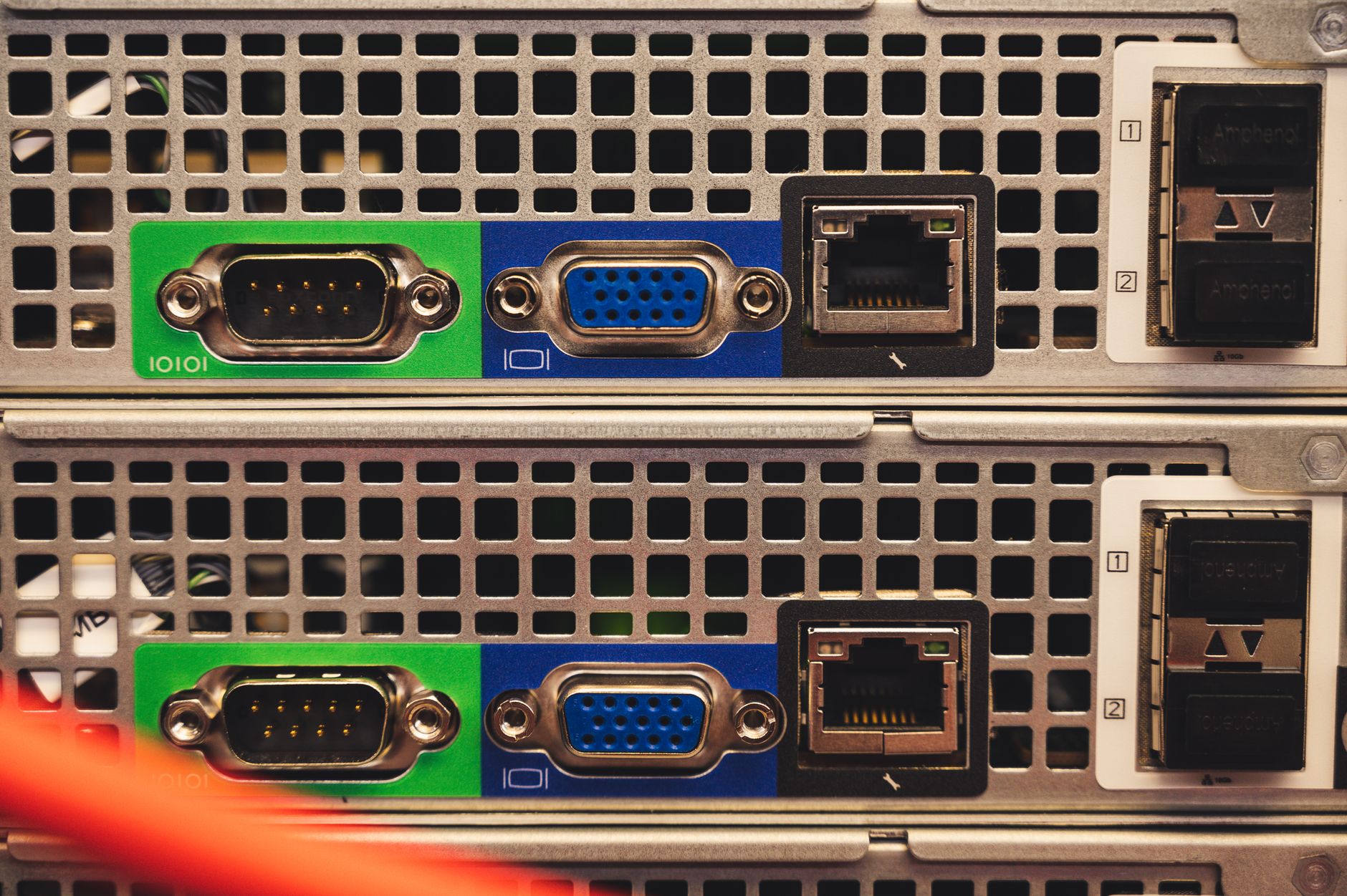
A network interface is the point of interconnection between a computer and a private or public network. In Linux, these are represented by virtual devices managed by the kernel. You will typically encounter three types of interfaces:
- Loopback (
lo): A virtual interface that allows the system to communicate with itself. It is essential for local services. - Physical (
eth0,enp3s0, etc.): These represent actual hardware, such as an Ethernet port or a Wi-Fi card. - Virtual/Tunnel (
docker0,veth...): These are created by software (like containers or VPNs) to bridge or route traffic.
Viewing Interfaces with ip link
The modern tool for managing these connections is the ip suite from the iproute2 package. It replaces older, deprecated tools like ifconfig.
To see the current state of all interfaces, run:
Baship link show
The output provides a wealth of information. Let’s break down a typical entry:
TEXT2: eth0: <BROADCAST,MULTICAST,UP,LOWER_UP> mtu 1500 qdisc fq_codel state UP mode DEFAULT group default qlen 1000
    link/ether 00:16:3e:12:34:56 brd ff:ff:ff:ff:ff:ff
- Index (
2:): The kernel's internal identifier for this interface. - Name (
eth0): The logical name assigned to the hardware. - Flags (
<UP,LOWER_UP>): This is the "health check."UPmeans the interface is administratively enabled;LOWER_UPmeans the physical connection (like a plugged-in cable) is detected. - MTU (
1500): Maximum Transmission Unit; the largest packet size the interface can handle. - link/ether: The MAC address (Media Access Control), the unique physical identifier of your network card.
Interpreting Interface Status

When debugging connectivity, the first step is checking if the interface is actually "up." If you see DOWN in the flag list, the interface is disabled.
If you suspect your server is having issues, you might find Linux network troubleshooting: mastering ss, netstat, and tcpdump useful for deeper inspection once you have verified the interface is live.
Identifying IP Addresses
While ip link shows the physical layer, it doesn't show the IP addresses assigned to those interfaces. To see both the interface status and its logical address, we use:
Baship addr
This command lists the interface, its status, and the inet line, which contains your IPv4 address and subnet mask (e.g., 192.168.1.5/24).
Hands-on Exercise: Audit Your Interfaces
Open your terminal and follow these steps to audit your current system:
- Run
ip link showand identify which interface is theloopback(lo). - Identify your primary network interface. Is it marked as
UP? - Note the MAC address (the hex string after
link/ether). - Run
ip addrand confirm that your primary interface has an assigned IPv4 address.
Common Pitfalls
- Ignoring the Loopback: Beginners often ignore
lo. If you can't reach a local service, always check if the loopback isUP. - Misreading Flags: A common mistake is thinking
UPmeans "connected to the internet."UPonly means the software interface is enabled.LOWER_UPis the true indicator of a physical link. - Deprecated Tools: You may see older tutorials recommending
ifconfig. Avoid this; it is no longer maintained and lacks support for modern network features like VRFs or advanced queueing disciplines.
FAQ
Q: Why does my interface show state DOWN?
A: It is likely disabled in the system configuration or hasn't been initialized by your network manager. Use sudo ip link set <interface> up to attempt a manual start.
Q: What is the mtu 1500 value?
A: That is the standard Maximum Transmission Unit for Ethernet. If you are working with specialized network tunnels (like VPNs or certain cloud overlays), you might need to adjust this to avoid packet fragmentation.
Q: How do I know which interface is my "real" internet connection?
A: The interface connected to the internet usually has a global IP address and is often named something like eth0 or ens3 in cloud environments.
Recap

In this lesson, we identified how to view network interfaces using ip link and how to interpret their operational status. Understanding these hardware-level details is crucial before we move on to configuring IP addresses and testing connectivity. Properly managing these interfaces is a prerequisite for advanced tasks like troubleshooting connectivity issues in Docker networks.
Up next: IP Configuration — learning how to inspect IP addresses, subnets, and gateway settings.