Containerization Basics: Building Portable and Consistent Services
Master Docker by learning to write Dockerfiles, build images, and run containers. Ensure environment consistency and seamless deployment for your services.
Previously in this course, we explored Managing Secret Keys and Configuration to keep our applications flexible. Now, we'll take that configuration and package it into a predictable, portable format using Docker.
From First Principles: What are Containers?
In traditional software development, we often rely on the "it works on my machine" defense. This usually happens because your development environment—its OS libraries, language runtimes, and system configurations—differs from the production server.
Containers solve this by bundling your application code, runtime, dependencies, and configuration into a single, immutable unit called an image. When you run this image, it becomes a container: a lightweight, isolated process that has everything it needs to execute, regardless of the underlying host machine.
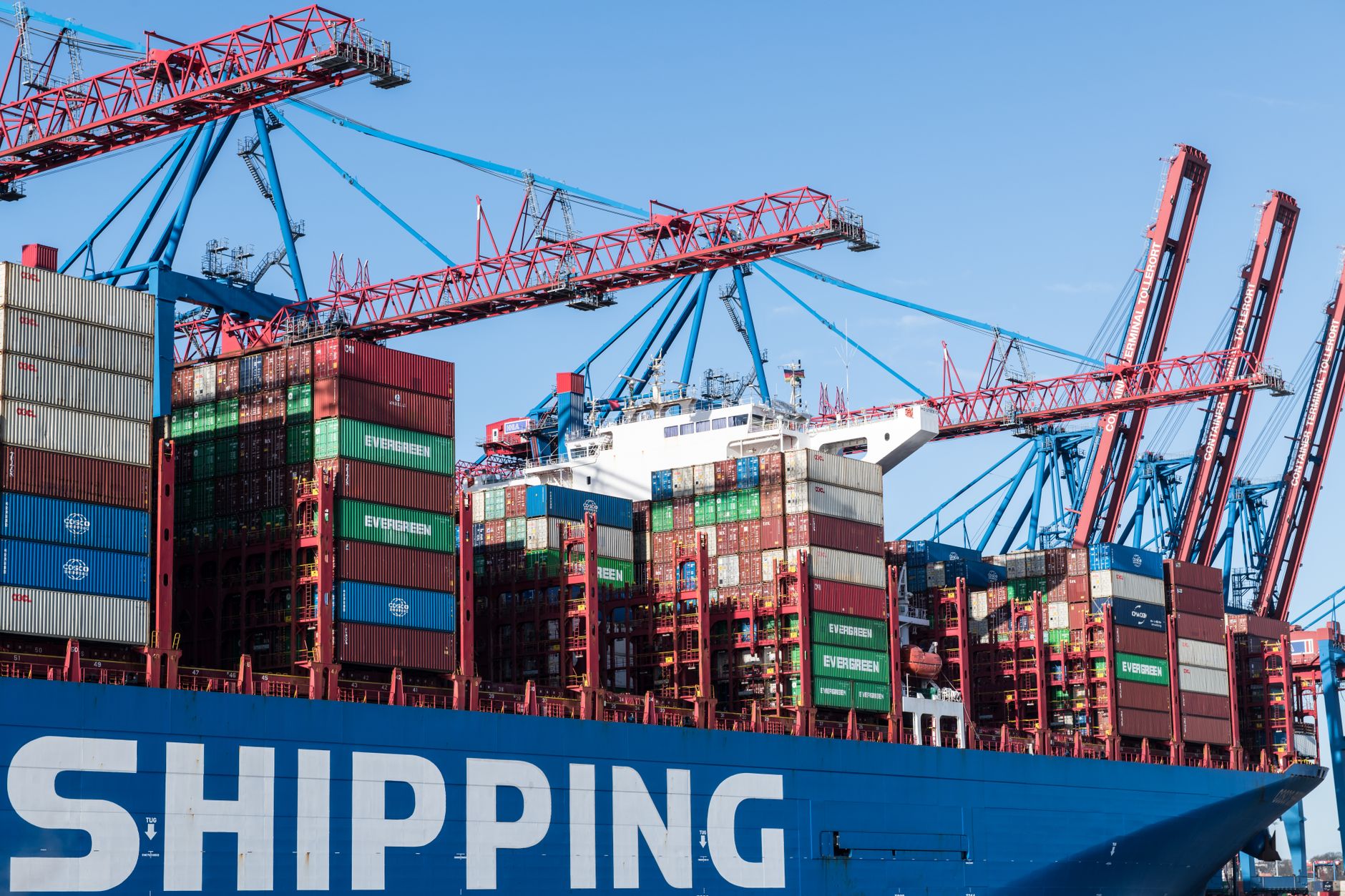
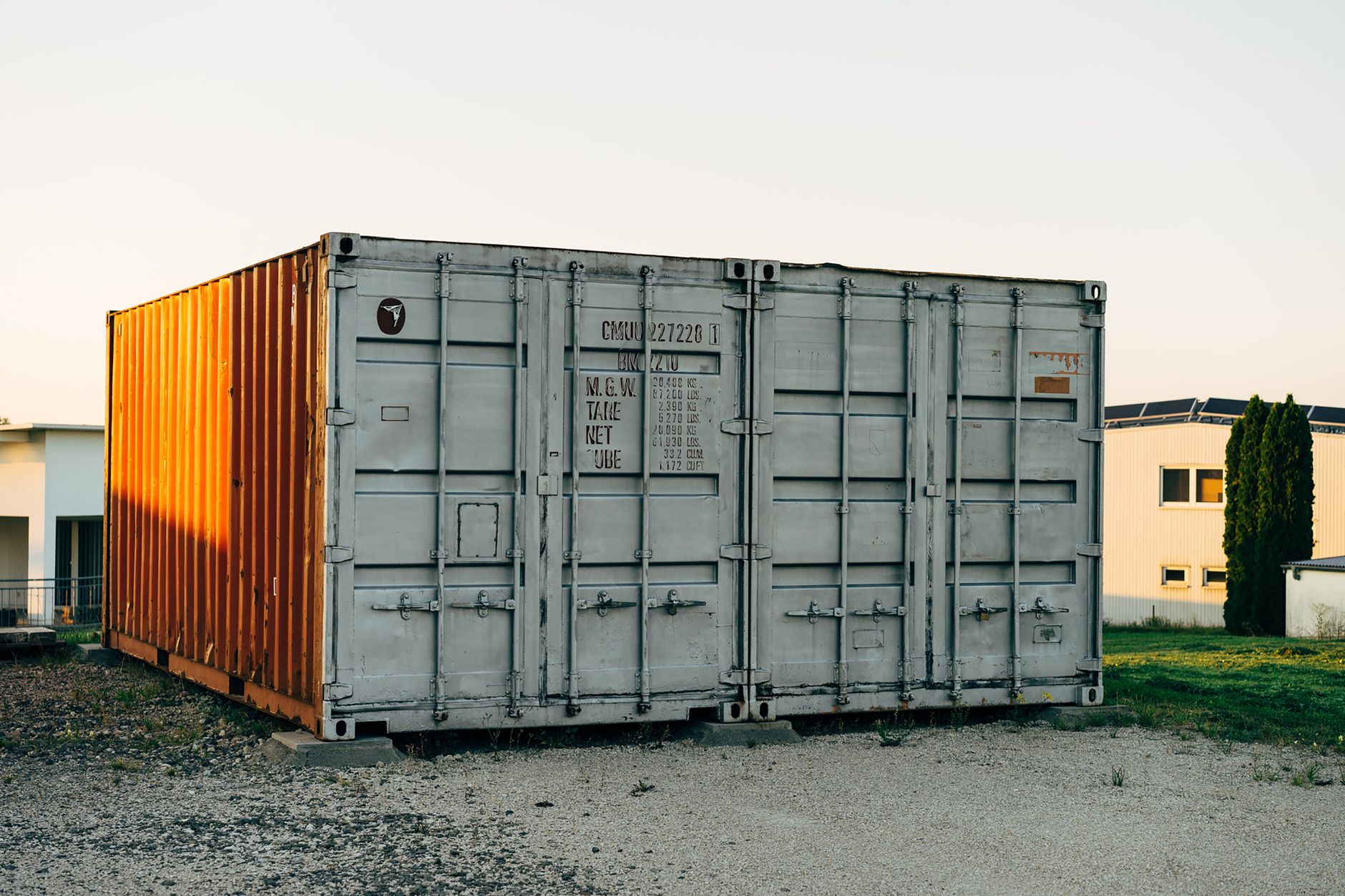
Think of it like shipping cargo: instead of worrying about how a crane or a truck handles specific items, you put everything into a standard shipping container. As long as the ship, the truck, and the crane are "container-compatible," the contents arrive safely and exactly as they were packed.
Writing Your First Dockerfile
A Dockerfile is a text document that contains all the commands a user could call on the command line to assemble an image. It is the recipe for your service.
Let’s create a Dockerfile for a simple Python web service. Place this file in the root of your project:
Dockerfile# 1. Start from a base image that includes Python
FROM python:3.11-slim

# 2. Set the working directory inside the container
WORKDIR /app

# 3. Copy dependencies and install them
COPY requirements.txt .
RUN pip install --no-cache-dir -r requirements.txt

# 4. Copy the rest of the application code
COPY . .

# 5. Define the command to run the application
CMD ["python", "app.py"]
Each instruction in the file creates a "layer" in the image. By placing COPY requirements.txt before COPY . ., we take advantage of Docker’s caching: if your code changes but your dependencies don't, Docker reuses the layer where the dependencies were already installed, making builds significantly faster.
Building and Running Your Service
Once you have your Dockerfile, you need to turn it into an image. Navigate to your project folder in the terminal and run:
Bashdocker build -t my-web-service:v1 .
The -t flag tags the image with a name (my-web-service) and a version (v1). The . tells Docker to look for the Dockerfile in your current directory.
After the build completes, you can run the service in a container:
Bashdocker run -d -p 8080:8080 --name my-running-service my-web-service:v1
-d: Runs the container in "detached" mode (in the background).-p 8080:8080: Maps port 8080 on your host machine to port 8080 inside the container.--name: Gives your container a human-readable name.
You can verify it's running with docker ps and see logs with docker logs my-running-service.
Hands-on Exercise
For your running project, choose one of your microservices (e.g., the User Service or the Order Service).
- Write a
Dockerfilefor it. - Build the image locally.
- Successfully run the container and perform an
HTTP GETrequest against its port to ensure it returns a "200 OK" status. - Document the
docker runcommand in your project repository so your team knows how to spin it up.
Common Pitfalls
- Including Local Junk: Don't copy your
.gitfolder or localnode_modulesinto the image. Use a.dockerignorefile to exclude them, just like you would with.gitignore. - Running as Root: By default, containers run as the root user. For security-sensitive services, add a
USERinstruction to yourDockerfileto create and switch to a non-privileged user. - Missing Environment Variables: If your application relies on configs from Managing Secret Keys and Configuration, remember to pass them into the container using the
-eflag (e.g.,docker run -e DB_URL=...) or a.envfile.
FAQ
Q: Is a container the same as a Virtual Machine? A: No. A VM includes a full guest operating system, which is heavy. Containers share the host's OS kernel, making them much faster to start and smaller in size.
Q: How do I handle persistent data? A: Containers are ephemeral. If you delete them, their internal filesystem is wiped. Use Volumes to mount a folder from your host machine into the container to persist database files or logs.
Q: Do I need to learn Kubernetes now? A: Not yet. Master running individual containers first. Kubernetes is an orchestrator used to manage many containers, but the fundamentals of how to build the container image remain exactly the same.
Recap
We’ve learned that containers provide the ultimate tool for consistency in deployment. By writing a Dockerfile, you codify your environment, and by building and running Docker containers, you ensure your service runs exactly the same way regardless of the environment.
Up next
Now that your services are containerized, we need a way to provision the underlying infrastructure they run on without manually configuring servers. We'll move on to Introduction to Infrastructure as Code to automate our environment setup.
Work with me

CI/CD Pipeline & Docker Containerization
Ship with confidence: automated CI/CD pipelines and Docker setups so every push is tested and deployed — no more manual, error-prone releases.

VPS Server Setup, Deployment & Hardening
Get your app live on a fast, secure server — properly configured, hardened, and deployment-ready. No more wrestling with the command line.