Optimizing Images and URLs for SEO: The Beginner's Guide
Master image optimization and clean URL structure. Learn how to write descriptive alt text and keyword-rich slugs to improve your site's search visibility.

Previously in this course, we organized our text content hierarchically by mastering heading tags. This lesson adds the next layer of on-page optimization: ensuring that the non-text elements of your page—specifically your images and your URL structure—are fully searchable, accessible, and user-friendly.
When search engine crawlers inspect your site, they don't "see" images the way humans do. They rely on textual hooks—file names, surrounding context, and most importantly, alternative text—to understand what an image depicts. Similarly, your URL structure serves as the digital address of your page, providing both humans and search engines with an immediate, readable summary of your content before they even click.
Let's break down how to optimize both to turn your project page into a search-ready asset.
Writing Descriptive Image Alt-Text
Alternative text (alt text) is a short written description of an image embedded directly into the HTML markup using the alt attribute. While its original purpose is accessibility—helping screen readers describe visuals to visually impaired users—it is also a core ranking signal for search engine bots.
If you omit alt text or rely on default camera strings like IMG_4920.jpg, you miss a major opportunity to rank in image search and give context to your main content.
Rules for Writing Effective Alt Text
- Be specific and literal: Describe what is actually in the image within the context of the page. If the image is a screenshot of a dashboard showing traffic metrics, write:
Dashboard analytics showing a 40 percentage increase in organic traffic. - Include your target keyword naturally: If your target keyword fits the visual context, use it. Never force it, and avoid alt-text keyword stuffing (e.g.,
alt="shoes running shoes best running shoes"). - Keep it concise: Aim for under 125 characters so screen readers can finish reading it without timing out or annoying the user.
- Skip decorative images: If an image is purely for background design or spacing, leave the alt attribute empty (
alt="") so screen readers ignore it.
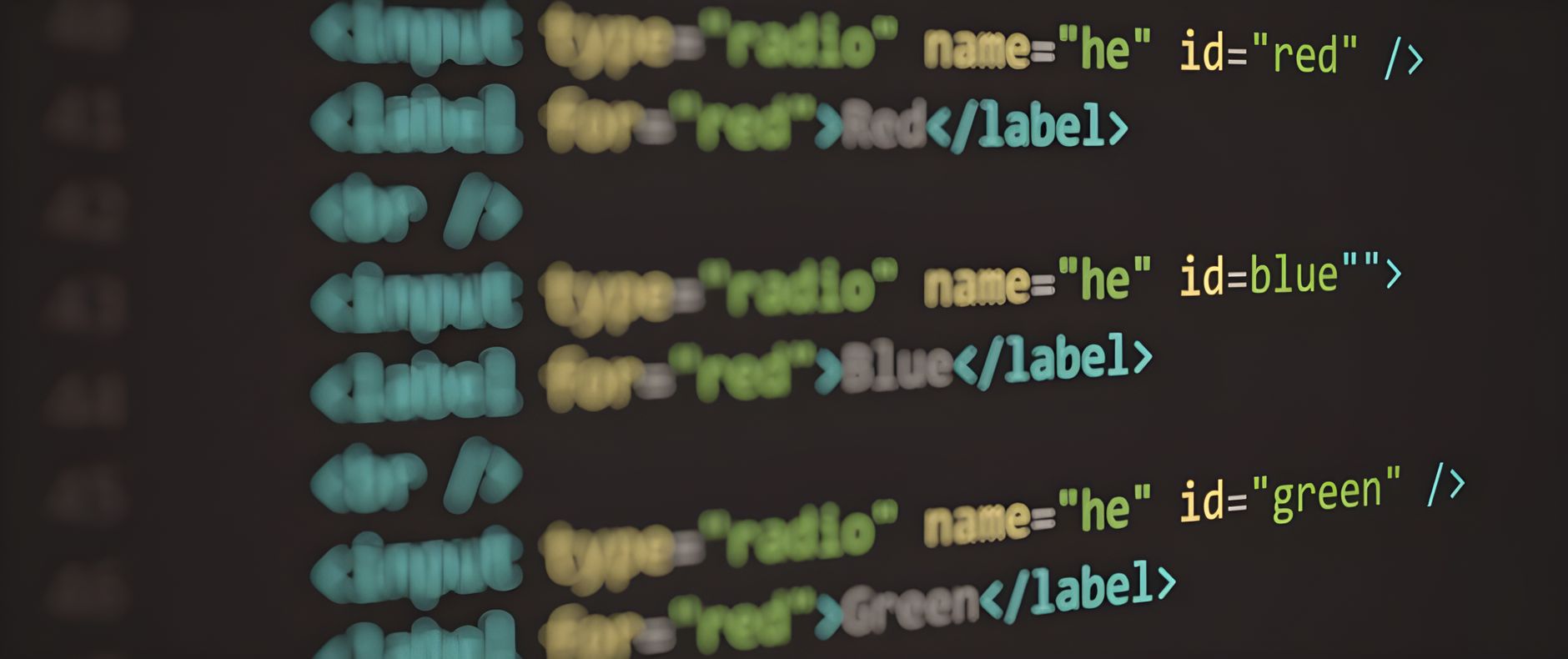
Here is what proper HTML implementation looks like:
HTMLstyle="color:#808080"><style="color:#4EC9B0">img src="/assets/analytics-dashboard.webp" alt="Dashboard analytics showing a 40 percentage increase in organic traffic" width="1200" height="630">
(Note: For deeper technical performance on how images are delivered at scale, you can explore strategies like Cloudflare Image Resizing: Optimizing Vercel Assets at the Edge.)
Creating Clean, Keyword-Rich URL Slugs

A URL slug is the exact part of a URL that identifies a specific page on your domain, located right after the final forward slash (e.g., yoursite.com/blog/url-slug). Clean URLs are easy to read, easy to share, and give search engines an instant signal about the page's topic.
Messy URLs full of tracking parameters, dates, or database IDs look spammy and hurt click-through rates.
Best Practices for URL Slugs
- Keep it short and descriptive: Drop unnecessary filler words like "the," "and," or "a." Instead of
/blog/how-to-do-keyword-research-for-beginners, use/blog/beginner-keyword-research. - Include your primary keyword: Make sure your core search term lives in the slug. If your page targets "image optimization," your slug should feature those exact words.
- Use hyphens to separate words: Always use standard hyphens (
-) rather than underscores (_) or spaces (which turn into ugly%20strings). - Keep everything lowercase: Mixed-case URLs can sometimes lead to duplicate content errors if server routing isn't configured strictly.
| Bad URL Structure | Good URL Structure | Why It Works |
|---|---|---|
site.com/p?id=8492 | site.com/services/web-design | Descriptive, readable, contains target keyword |
site.com/Blog/2026/07/Post-Name_Final | site.com/blog/image-optimization | Lowercase, clean hyphens, no dates or ID numbers |
Hands-On Exercise: Updating Your Project Page
Now it's time to apply these principles directly to your running course project website.
- Audit your images: Open your project's main page and locate every image. Check their file names and current alt attributes.
- Rewrite alt text: Draft a descriptive alt text string for each image that incorporates your primary or secondary keywords naturally without stuffing.
- Refine your URL slug: Check the current URL of your project page. If it contains numbers, uppercase letters, or extra parameters, plan a clean slug that highlights your core topic. (If your site is already live, remember to set up a 301 redirect if you change an existing live URL).
Common Pitfalls to Avoid
- Keyword stuffing in alt tags: Writing
alt="seo agency best seo services near me"looks spammy to users and can trigger spam filters in modern search engines. - Relying on auto-generated image names: Leaving file names as
screenshot-1.pngwastes valuable contextual clues. Rename your image files before uploading them to your server (e.g.,seo-audit-checklist.png). - Using complex nested directory structures: Avoid deep folder paths like
site.com/blog/2026/07/category/subcategory/post-name. Keep your site flat and simple:site.com/blog/post-name.
Recap
Optimizing your non-text elements bridges the gap between human readability and machine comprehension. By crafting literal, descriptive alt-text and clean, hyphenated URL slugs, you make your site more accessible while giving search engines clear signals about your content's focus.
Up next: Keyword Usage and Content Flow
Work with me

Next.js Website & Landing Page Development
A blazing-fast, SEO-optimized website or landing page in Next.js — the kind that loads instantly and ranks. Design-to-code, done right.

Next.js Full-Stack Web App Development
A fast, SEO-ready full-stack web app built with Next.js 16 — from idea to deployed product, by an engineer who ships to production.