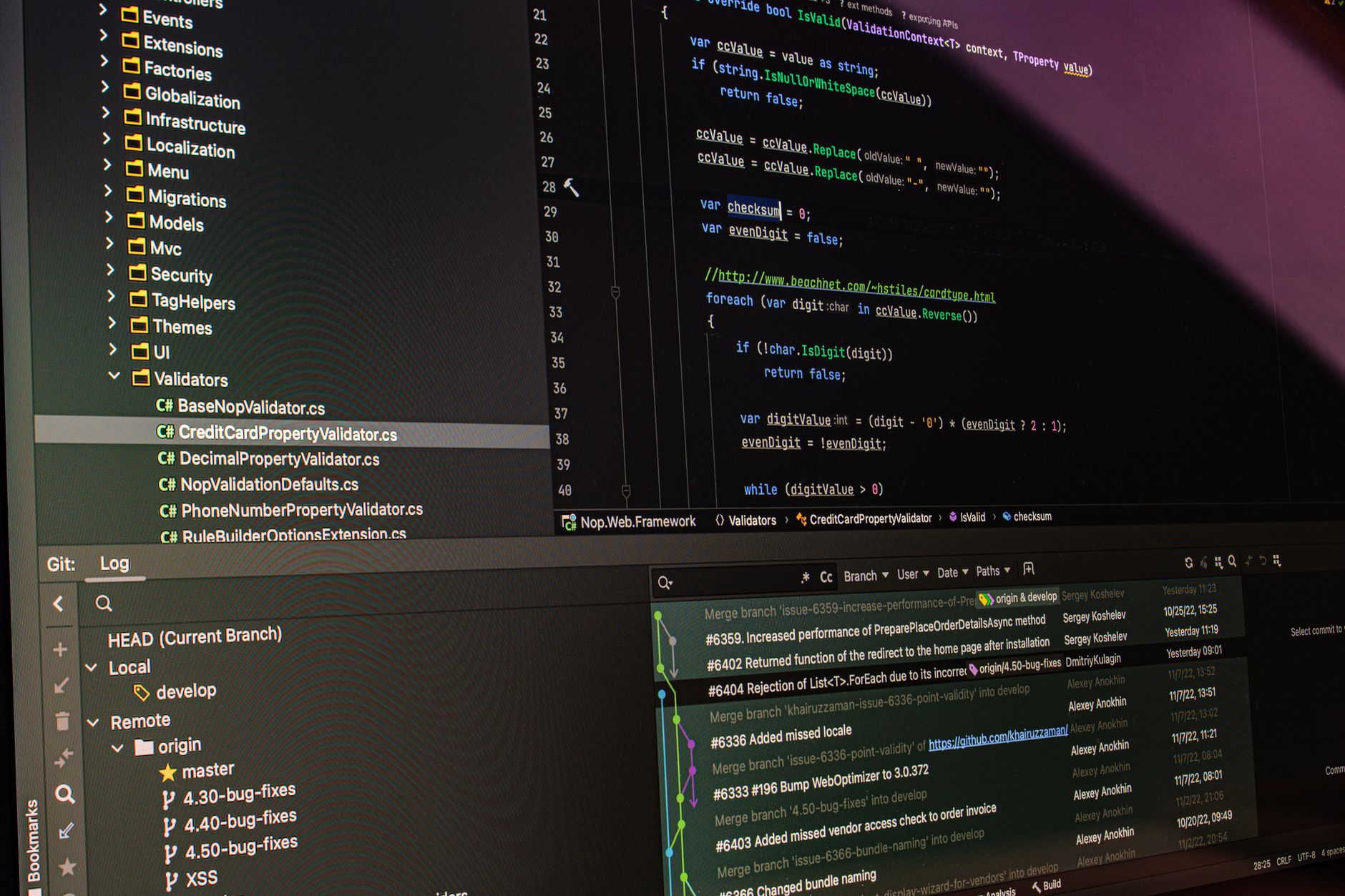
Mastering Git Log: Viewing Commit History and Metadata
Learn how to use git log to view your project's commit history. Master the interpretation of commit hashes and metadata to track your development progress.
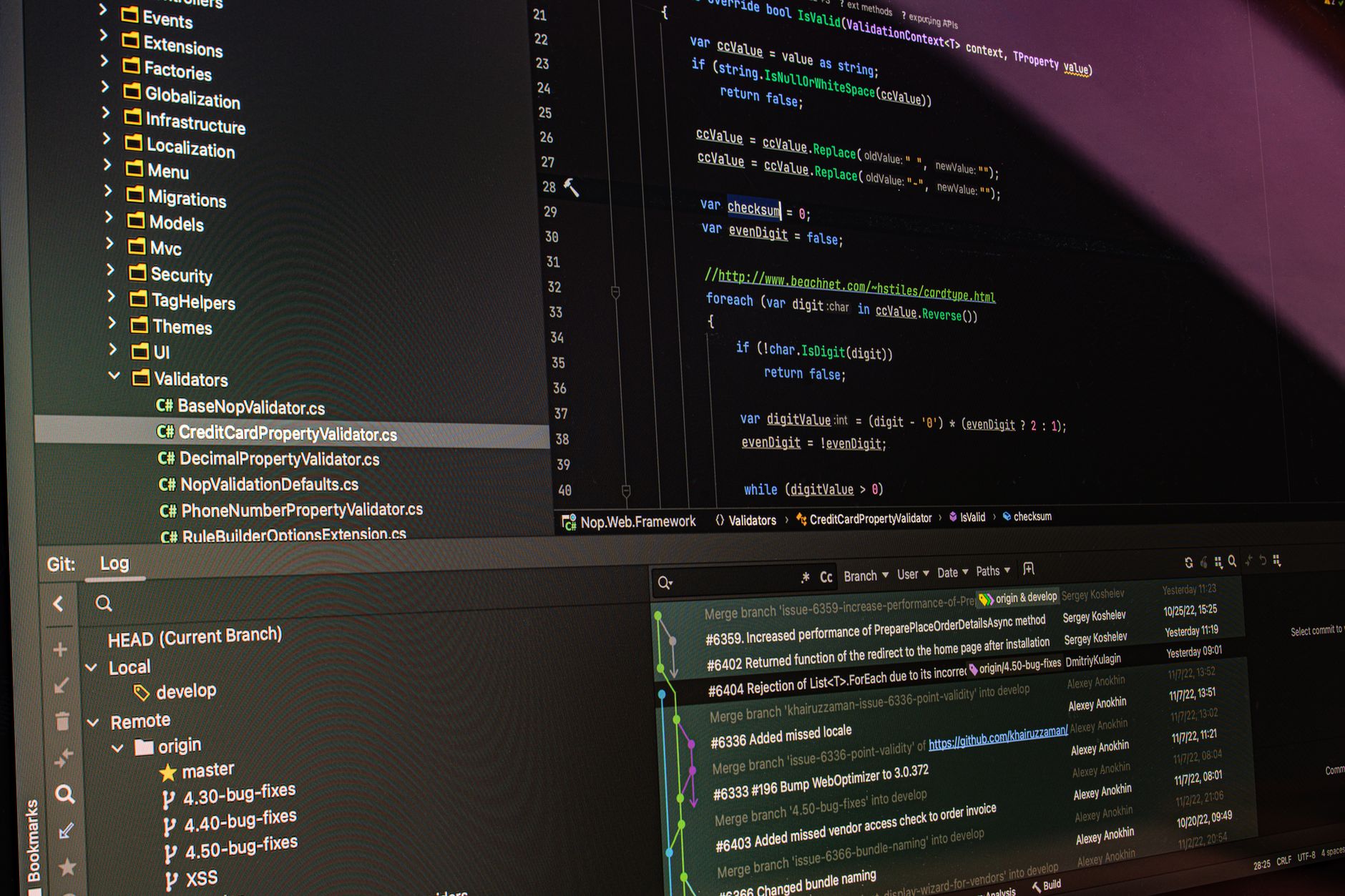
Previously in this course, we covered Creating Your First Commit: Saving Progress in Git, where you learned how to snapshot your work. Now that you have a repository with a few commits, you need a way to look back at that progress. This lesson introduces the git log command, your primary tool for inspecting the timeline of your project.
Understanding the Git Log
In Git, a "commit" is a snapshot of your project at a specific point in time. When you work on a project for weeks, you’ll eventually lose track of why you made certain changes. The git log command allows you to view the sequence of these snapshots, providing a historical record of your project's evolution.
When you run git log in your terminal, Git prints a list of commits in reverse chronological order—the most recent one appears at the top. Each entry contains specific metadata that provides context for the change.
Interpreting Commit Metadata
Every commit in Git contains three critical pieces of information:
- Commit Hash: A unique 40-character alphanumeric string (e.g.,
a1b2c3d4...). It acts as the "ID" for that specific version of your project. - Author Information: Who made the change and when it was committed.
- Commit Message: The description of the changes, which you provided during the
git commitprocess.
Here is what a standard git log output looks like:
TEXTcommit a1b2c3d4e5f6g7h8i9j0k1l2m3n4o5p6q7r8s9t0
Author: Jane Doe <jane@example.com>
Date:   Wed Oct 25 10:30:00 2023 -0500

    Add initial project structure
Worked Example: Exploring History
Let’s look at how to use git log to extract useful information. Navigate to your project folder in your terminal and run the command:
Bashgit log
If your output is long, Git will open a "pager" (usually less). You can press j to scroll down, k to scroll up, and q to quit the view.
Useful Log Variants
While the standard git log is useful, it can be verbose. Most professionals use flags to make the history easier to scan:
git log --oneline: Condenses each commit to a single line, showing only the shortened hash and the commit message. This is perfect for a quick overview.git log -p: Displays the actual "patch" (the code differences) for every commit. This is the most detailed way to see exactly what changed in each file.git log -n 3: Limits the output to the last 3 commits.
Hands-on Exercise
- Open your terminal and navigate to the project directory you've been building throughout this course.
- Run
git logto see your full history. Identify the hash of your very first commit. - Run
git log --onelineto see a summary. - Run
git log -p -n 1to view the full details and code changes of your most recent commit.
Common Pitfalls
- Forgetting to quit the pager: If your terminal seems "stuck" after running
git log, it’s because you are inside thelesspager. Simply press theqkey to return to your command prompt. - Ignoring the Author: Beginners often overlook the Author field. If you are working in a team, always check if a commit was made by you or someone else before assuming why a change exists.
- Over-relying on the full hash: You don't need to type the full 40-character hash when performing operations later in the course. Git usually accepts the first 7 characters (e.g.,
a1b2c3d) as long as it is unique.
Frequently Asked Questions
Does git log modify my files?
No. git log is a "read-only" command. It only displays information and cannot change your project files.
How far back can I see?
You can see every commit you have made since you ran git init in your project folder.
Can I see who changed a specific line of code?
Yes, but that requires a more advanced command called git blame, which we will cover later in this course.
Recap
In this lesson, we learned that git log is the essential tool for auditing your project's history. By inspecting commit hashes, authors, and messages, you can reconstruct the context of your development. Remember that you can always use flags like --oneline or -p to tailor the output to the level of detail you currently need.
Up next: Checking Status and Differences
Work with me

VPS Server Setup, Deployment & Hardening
Get your app live on a fast, secure server — properly configured, hardened, and deployment-ready. No more wrestling with the command line.
Custom WordPress Plugin Development
Custom WordPress & WooCommerce plugins built to standard — by the developer behind a plugin with 5,000+ active installs and a SaaS with 10,000+ users.