Rebasing vs Merging: Clean Git History for Beginners
Master the difference between rebase and merge to keep your project history clean. Learn how to perform a standard rebase with this step-by-step guide.
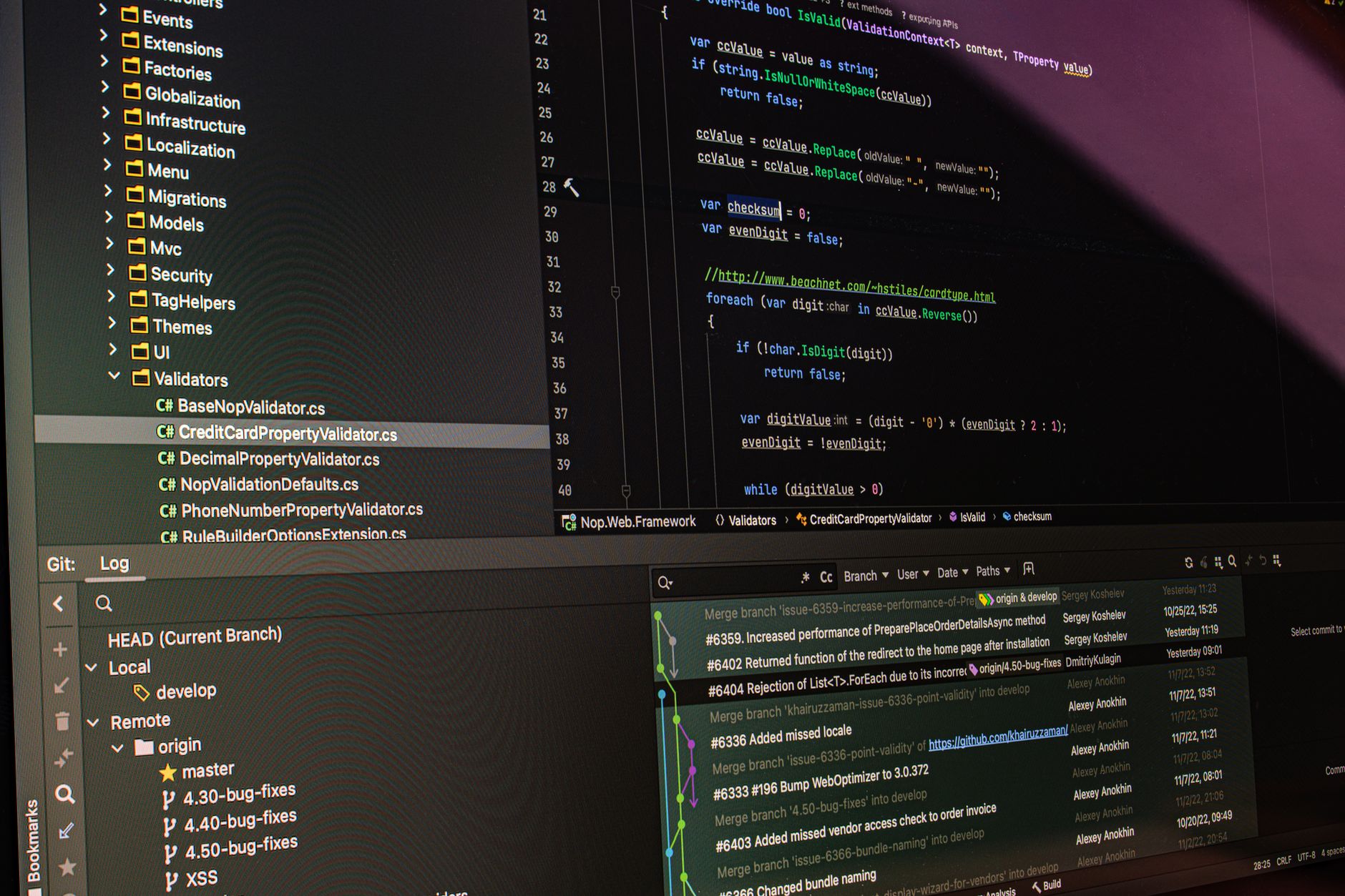
Previously in this course, we covered merging branches and how to resolve merge conflicts. While merging is the standard way to combine work, it often leaves a messy, non-linear commit graph. This lesson introduces rebasing, an alternative approach that rewrites history to create a perfectly linear project timeline.
Understanding the Difference
At a high level, both merge and rebase achieve the same goal: integrating changes from one branch into another. The difference lies in how they manipulate your project's history.
- Merging: Creates a "merge commit" that ties two branches together. It preserves the exact history of when and how code was integrated, which can lead to a cluttered graph if many developers are working simultaneously.
- Rebasing: Moves the entire sequence of your feature branch commits to begin from the tip of the target branch. It effectively "replays" your work on top of the latest code, resulting in a clean, straight line of history.
| Feature | Merge | Rebase |
|---|---|---|
| History | Preserves original timeline | Rewrites timeline |
| Complexity | Simple, non-destructive | Advanced, requires caution |
| Graph | Non-linear (branchy) | Linear (straight) |
| Traceability | Excellent (shows exact merge) | Minimal (hides intermediate states) |
Performing a Standard Rebase
Imagine you are working on a feature branch named login-page, and in the meantime, new commits have been added to main. Instead of merging main into your feature branch, you want to put your work on top of the latest main updates.
-
Switch to your feature branch:
Bashgit switch login-page -
Start the rebase process:
Bashgit rebase main
Git will now pause, take your unique commits, store them temporarily, reset your branch to match the main branch, and then apply your commits one by one. If you encounter conflicts, Git will pause and ask you to fix them. After fixing, you simply run:
Bashgit add <filename>
git rebase --continue
Hands-on Exercise
Let's practice this on our running project. Follow these steps to experience the difference:
- Create a new branch called
feature-temp. - Add a commit to
feature-temp(e.g., updateREADME.md). - Switch back to
mainand add a different commit tomainto cause a divergence. - Switch back to
feature-tempand rungit rebase main. - Run
git log --oneline --graphto see how your commit now sits on top of themaincommit.
Common Pitfalls
The most important rule in Git is: Never rebase public, shared branches.
Because rebasing rewrites history (it changes the commit hashes), it will cause massive headaches for teammates if you rebase a branch that others have already pulled. Only rebase local, private feature branches that have not yet been pushed to a shared repository. If you accidentally make a mess, you can always use the techniques we learned in recovering deleted commits to reset your state.
For more advanced cleanup, you might eventually want to explore Git interactive rebase to polish your commit messages or squashing commits before merging.
FAQ
Q: Which should I use?
A: Use merge for shared branches where you want to preserve the exact history. Use rebase for local feature branches to keep your personal work history clean and linear before you merge it into the main project.
Q: Is rebasing dangerous? A: Only if you rebase shared history. If you are working on your own private branch, it is perfectly safe and highly recommended for maintaining a clean history.
Q: What if I have a conflict during a rebase?
A: Git will stop the process. Resolve the conflicts in your files as you would with a normal merge, stage them with git add, and then execute git rebase --continue to finish.
Recap
We've explored how rebasing offers a cleaner, linear alternative to the standard merge. By understanding when to rebase—and more importantly, when not to—you can maintain a professional, readable repository history.
Up next: We will learn how to use git blame to investigate the history of specific lines of code.
Work with me

Laravel REST API Development
Clean, secure, well-documented Laravel REST APIs — the backend engine for your app, mobile client, or SaaS. Built by an API specialist.

React & Next.js Dashboard / Admin UI Development
A clean, data-rich dashboard UI in React or Next.js — charts, tables, and real-time data that your users will actually enjoy using.