Using GitHub Issues for Task Tracking and Workflow Management
Stop losing track of your work. Learn how to use GitHub Issues for task management, create structured plans, and link your code commits directly to your tasks.
Previously in this course, we covered Collaborative Coding and how to manage team-based development. While branches help you isolate your work, they don't inherently tell you why a piece of work exists or what needs to be done next. In this lesson, we add GitHub Issues to our toolkit to provide the "why" and "what" behind every line of code.
What are GitHub Issues?
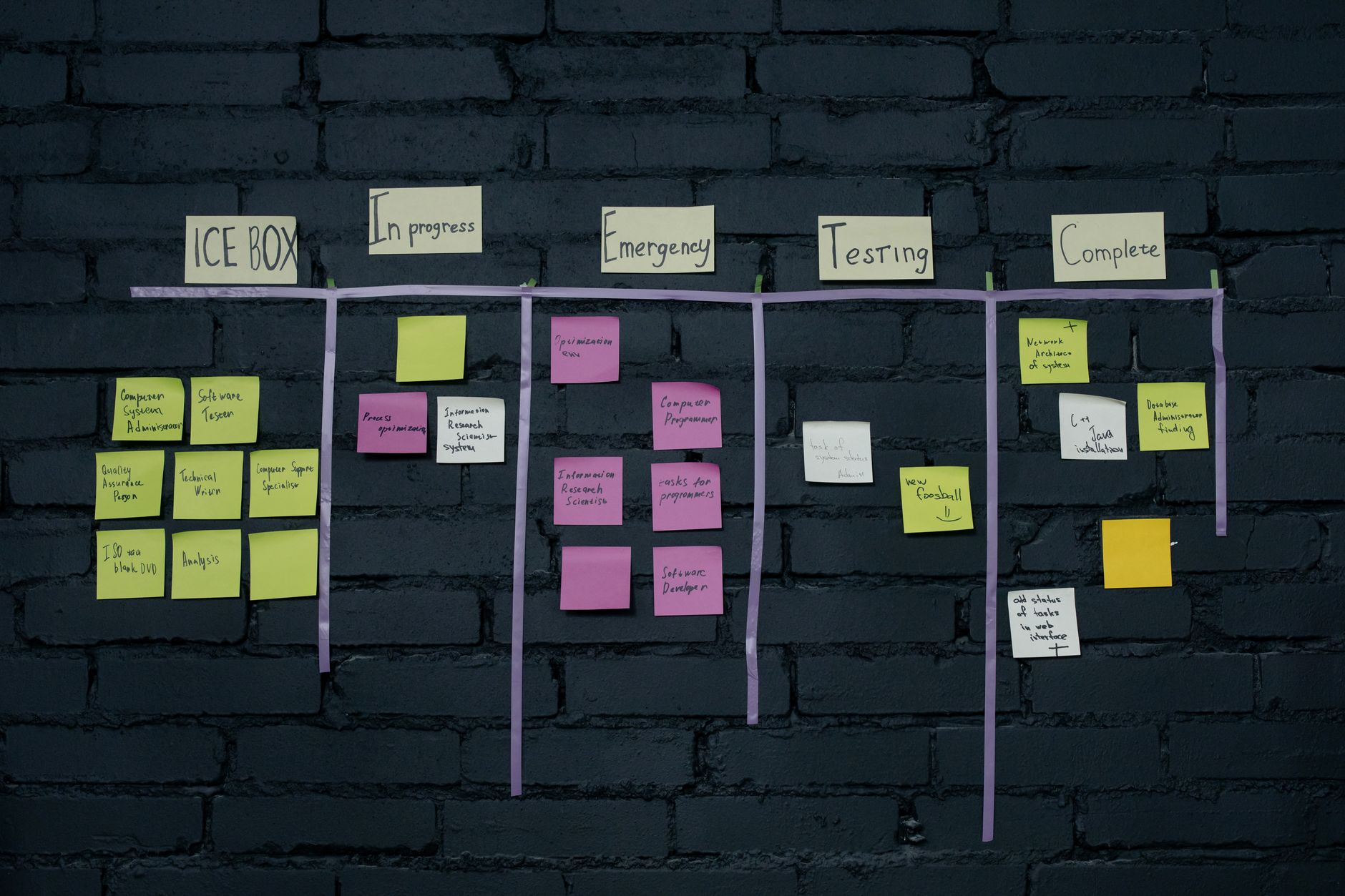
Think of GitHub Issues as a built-in project management tool that lives exactly where your code resides. Instead of using external tools like Trello or Jira, you can use issues to track bugs, feature requests, or project requirements.
When you manage your repository like we discussed in Project Setup Strategy, keeping your task list inside the repository ensures that context is never lost. Every issue gets a unique ID number (e.g., #1, #2), which becomes a permanent reference point for your project.
Opening Your First Issue
To open an issue, navigate to your repository on GitHub and click the "Issues" tab. From there, click the green "New issue" button.
A good issue is more than just a title. It provides context so that anyone (including "future you") understands the goal. Follow this simple template:
- Title: A concise summary (e.g., "Implement user login validation").
- Description:
- The Problem/Goal: What are you trying to solve?
- Steps to reproduce: (If it's a bug)
- Expected behavior: What should happen?
Once you hit "Submit new issue," GitHub assigns it a number. This ID is your key to linking your work.
Connecting Commits to Issues
The real power of this workflow comes when you link your Git history to your issues. You can automatically close an issue by referencing its ID in your commit message.
When you are ready to commit your work, use a keyword followed by the issue number. GitHub recognizes these keywords:
closes #1fixes #1resolves #1
Worked Example: Closing an Issue
Let's assume you have an open issue titled "Add error logging to the login script" with ID #3.
- Create your branch:
git switch -c feature/add-login-logging - Make your changes: Open your script and add the logging functionality.
- Commit with reference:
Bash
git add . git commit -m "Add logger to login script, closes #3" - Push your branch:
git push -u origin feature/add-login-logging
When you eventually merge this branch into your main branch via a Pull Request (as we learned in Creating Pull Requests), GitHub will automatically move the issue to the "Closed" status. This links the exact code change to the specific requirement.
Hands-on Exercise
- Go to your project repository on GitHub.
- Create a new Issue titled "Update README documentation" and describe what section needs adding.
- On your local machine, create a new branch named
docs/update-readme. - Modify the
README.mdfile to include the text you described in the issue. - Commit your changes with the message:
Update README with project goals, fixes #<your-issue-number>. - Push the branch and observe how the issue updates once you merge it.
Common Pitfalls
- Forgetting the Issue Number: If you commit without the
#ID, you'll have to manually go to GitHub and close the issue yourself. It's a small task, but it breaks the automation flow. - Overloading Issues: Avoid putting multiple, unrelated tasks into one issue. If you have three different features to add, create three separate issues. It makes tracking progress much easier.
- Vague Titles: A title like "Fix things" doesn't help you later. Use descriptive titles so you can search through your issue history effectively.
Frequently Asked Questions
Can I link multiple issues to one commit? Yes, you can write "fixes #1, #2" in your commit message to close multiple issues at once.
What if I accidentally close an issue? You can always reopen an issue manually on GitHub by clicking the "Reopen issue" button in the issue view.
Should I use issues for small changes? For very tiny changes (like fixing a typo), it might be overkill. However, for any task that impacts project functionality or requires coordination, always use an issue.
Recap
We’ve moved from just writing code to managing a project. By using GitHub Issues, you ensure that every commit has a purpose and every task has a clear status. This discipline is what separates casual coding from professional software engineering.
Up next: Best Practices for Commit Messages
Work with me

AI Automation & Agentic Workflow Development
Automate the repetitive work eating your time — content pipelines, data workflows, and agentic AI tasks that run themselves.

CI/CD Pipeline & Docker Containerization
Ship with confidence: automated CI/CD pipelines and Docker setups so every push is tested and deployed — no more manual, error-prone releases.