Introduction to Docker Images: Templates and Registries
Learn the core relationship between Docker images and containers. Master how to pull from a registry, manage local images, and prepare for custom builds.
Previously in this course, we explored Understanding Container Isolation: Processes, Files, and Namespaces to see how the engine keeps environments separate. Now that you can manage container lifecycles, it’s time to move "upstream" to the source: the images.
In the Docker ecosystem, you don't just "create" a container; you instantiate one from an image. Understanding this transition from a static template to a running process is the single most important conceptual leap in your DevOps journey.
The Image-to-Container Relationship
Think of a Docker image as a blueprint or a class in object-oriented programming. It is a read-only, immutable file containing the source code, libraries, dependencies, and configuration required to run an application.
A container, by contrast, is the running instance—the "object" created from that class. When you execute a command like docker run, the engine takes the read-only image and adds a thin "writable layer" on top. This is why you can modify files inside a container without ever changing the underlying image.
| Feature | Docker Image | Docker Container |
|---|---|---|
| State | Immutable (Read-only) | Mutable (Read/Write) |
| Persistence | Stored on disk | Ephemeral (unless volumes are used) |
| Analogy | Blueprint/Class | Built House/Object |
| Purpose | Distribution/Templating | Execution/Service |
Pulling from a Registry
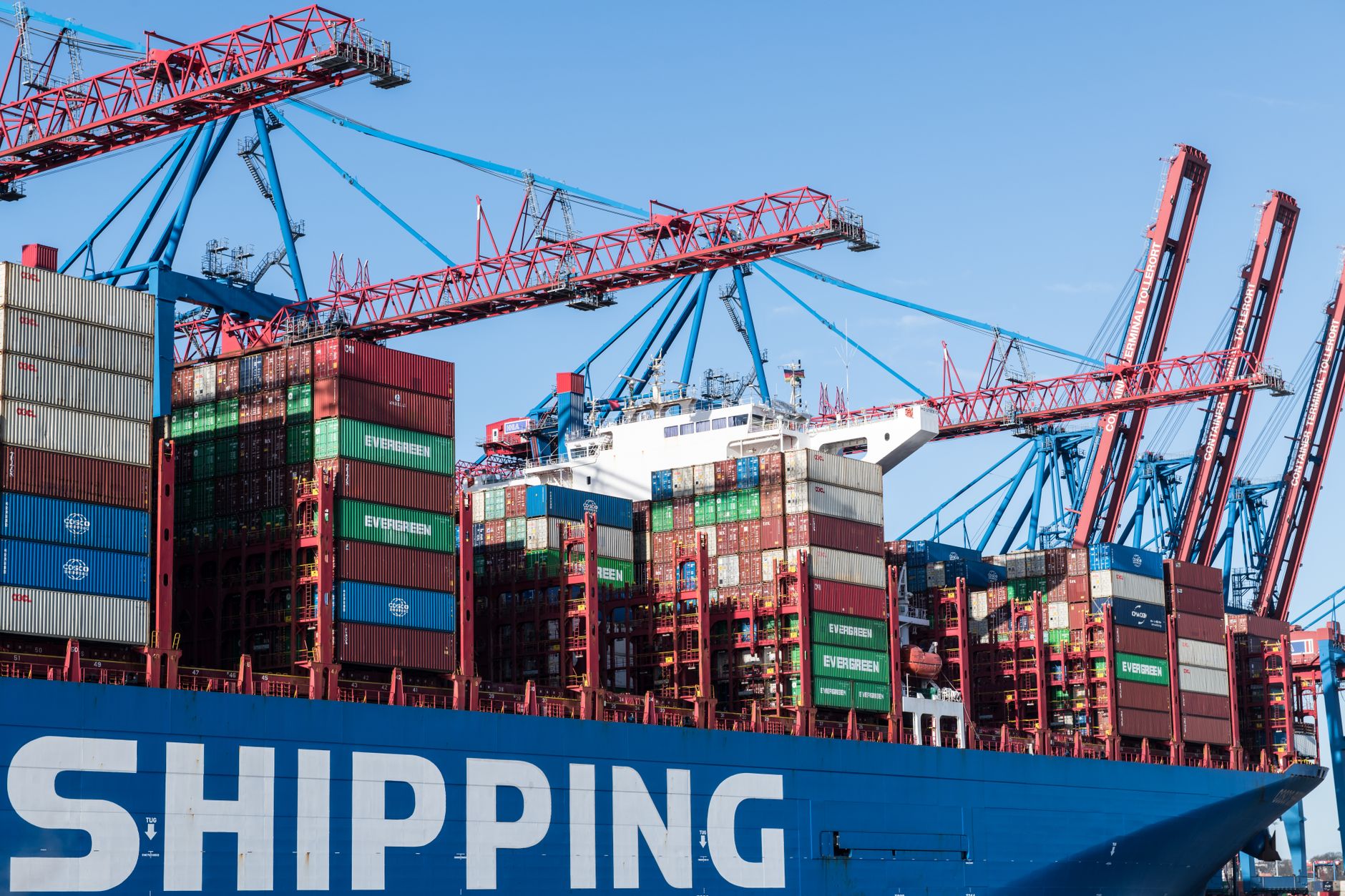
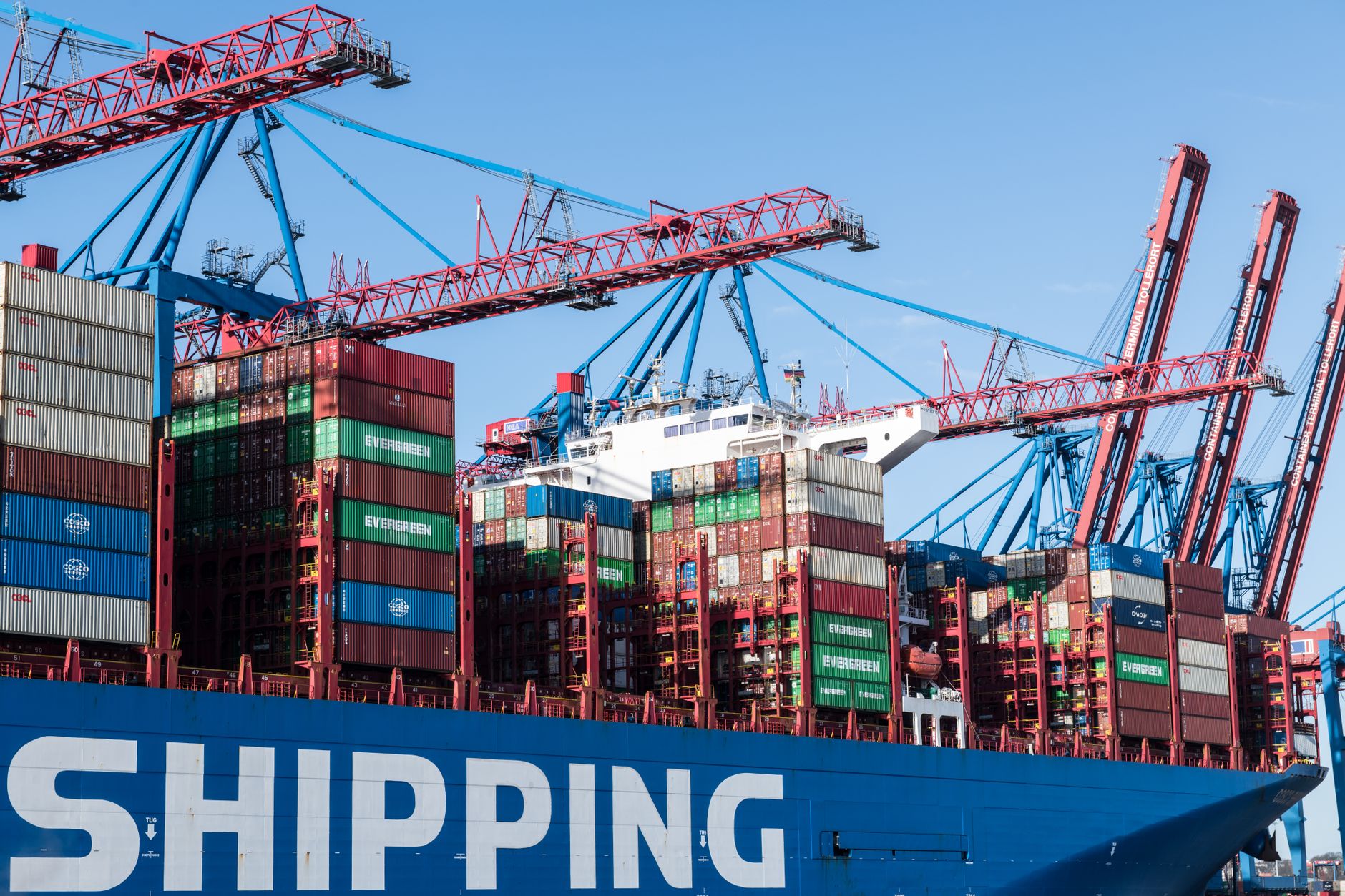
Images are stored in a registry—a centralized repository service. The most common registry is Docker Hub, which hosts thousands of public images.
When you run an image that isn't already on your machine, the Docker engine performs a docker pull operation. This command fetches the image layers from the remote registry and saves them locally.
Try it now in your terminal:
Bash# Pull the official Nginx web server image
docker pull nginx:latest
You will see several progress bars. Each bar represents a "layer" of the image (a concept we will deep-dive into in future lessons). Once the pull completes, you have a local copy of that image.
Listing Local Images
Since images can take up significant disk space, it’s vital to know what you have stored locally. You can view all downloaded images using the docker images command:
Bashdocker images
The output will show:
- REPOSITORY: The name of the image (e.g.,
nginx). - TAG: The specific version (e.g.,
latest). - IMAGE ID: The unique hash identifier for the image.
- CREATED: When the image was built.
- SIZE: The total disk footprint.
Hands-on Exercise
Let’s bridge the gap between image and container. Follow these steps to verify your understanding:
- Pull an image: Run
docker pull alpine:3.18. (Alpine is a tiny, popular Linux distribution used for lightweight containers). - List it: Run
docker imagesand confirmalpineappears in the list. - Launch it: Run
docker run -it alpine:3.18 /bin/sh. You are now inside a container running the image you just pulled. - Inspect: Type
ls /inside the shell to see the file structure. - Exit: Type
exitto return to your host.
Common Pitfalls
- Assuming the "latest" tag is always the newest code: The
latesttag is just a label. In production, always use specific version tags (likenginx:1.25.3) to ensure your deployments are predictable and reproducible. - Pulling too many images: If you pull images blindly, your disk will fill up. Use
docker image pruneperiodically to remove "dangling" images (images that aren't tagged or used by any container). - Forgetting the Registry: If you try to run an image that doesn't exist locally or on Docker Hub, the engine will return an error. Always verify the image name and registry path.
FAQ
Q: Can I modify an image directly?
A: No, images are immutable. To change an image, you must create a new version of the image, usually via a Dockerfile (which we cover in the next lesson).
Q: Where are images stored on my computer?
A: They are managed by the Docker daemon. On Linux, this is typically /var/lib/docker. You generally shouldn't edit these files manually.
Q: Do I need to be logged into Docker Hub to pull images? A: Not for public images. You only need to log in if you are pulling private images or pushing your own work to a registry.
Recap
We’ve established that images are the immutable templates for our containers. We’ve learned that the docker pull command bridges the gap between the remote registry and your local machine, and that docker images is your primary tool for auditing your local library. You are now ready to stop consuming pre-made images and start creating your own.
Up next: Anatomy of a Dockerfile — where we will write the instructions to build your first custom image from scratch.
Work with me

CI/CD Pipeline & Docker Containerization
Ship with confidence: automated CI/CD pipelines and Docker setups so every push is tested and deployed — no more manual, error-prone releases.

VPS Server Setup, Deployment & Hardening
Get your app live on a fast, secure server — properly configured, hardened, and deployment-ready. No more wrestling with the command line.