Capturing User Input with Browser Dialogs in JavaScript
Learn how to use prompt and confirm browser dialogs to capture user input in JavaScript. Master interactive data collection for your web dashboard today.
Previously in this course, we covered Basic Arithmetic and Operators in JavaScript and explored how to handle data with Mastering Primitive Data Types in JavaScript. Now that you can perform calculations and manage data, it’s time to make your scripts interactive.
In this lesson, we will move beyond hard-coded variables and learn how to accept real-time input from the user via browser-native dialogs.
The Role of Browser Dialogs
Before we build complex HTML forms—which we will tackle later in the course—we need a way to communicate with the user immediately. Browser dialogs are simple, built-in methods provided by the window object that allow us to pause the execution of our script, display a message, and wait for a response.
The three primary dialogs are:
alert(): Displays a message to the user.prompt(): Displays a message and provides an input field for the user to type into.confirm(): Displays a message with "OK" and "Cancel" buttons, returning a boolean value.
For our to-do dashboard, we will use prompt to ask the user what task they want to add and confirm to ask if they are sure they want to clear their list.
Capturing User Input with prompt()
The prompt() function is the standard way to capture text input. When you call it, the browser stops executing your code until the user clicks "OK" or "Cancel".
Worked Example: Collecting a To-Do Item
Let's update our project to ask the user for a task name immediately when the script runs.
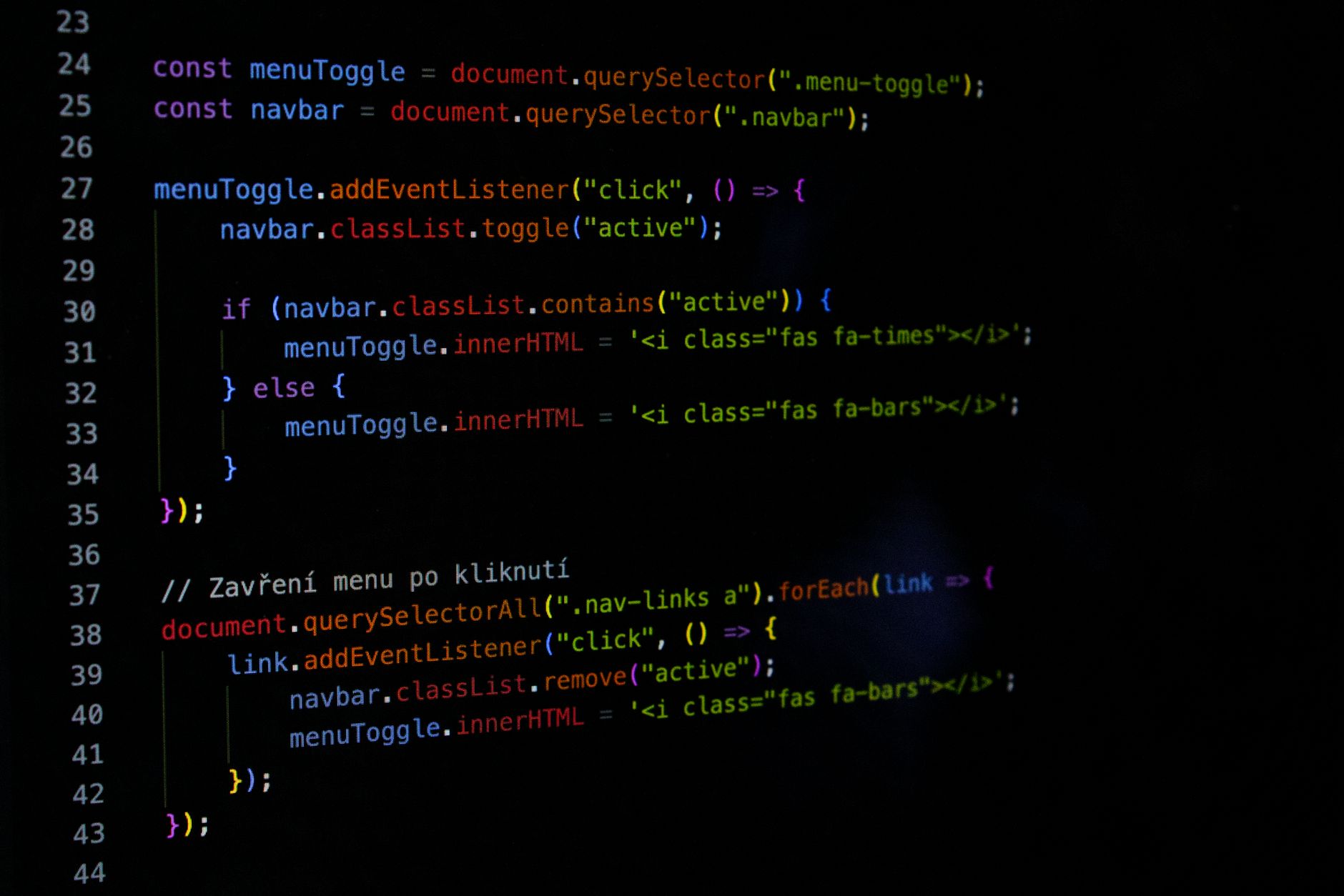
JAVASCRIPT// 1. Display a prompt and store the result in a variable
const taskName = prompt("What task would you like to add?");

// 2. Display the captured input in the console
console.log("User input captured:", taskName);

// 3. Use confirm to verify an action
const isImportant = confirm("Is this task high priority?");
console.log("Is it important?", isImportant);
Understanding the Return Values
- If the user types text and clicks OK: The
promptreturns the string the user entered. - If the user clicks Cancel: The
promptreturnsnull. - If the user clicks OK without typing: The
promptreturns an empty string"".
Hands-on Exercise
Open your browser's console or your project file. Write a script that performs the following steps:
- Ask the user for their name using
prompt(). - Store that name in a variable called
userName. - Use
alert()to greet them: "Hello, [userName]!". - Use
confirm()to ask if they want to start their dashboard. - Log "Dashboard ready: [true/false]" to the console based on their response.
Common Pitfalls
While browser dialogs are convenient for beginners, they have specific characteristics to watch out for:
- Blocking Execution: These dialogs are "blocking." This means your entire web page stops responding to clicks or animations until the user interacts with the dialog. In professional production environments, we avoid
promptandalertfor this exact reason, opting instead for custom HTML modals. - The
nullTrap: If a user hits "Cancel," your variable will storenull. If you try to perform string operations onnulllater in your code, you might trigger errors. Always check if the input exists before using it. - Browser Security: Some browsers may block repeated
alert()orprompt()calls if they determine they are being used to annoy the user.
FAQ
Q: Are these dialogs styled using CSS? A: No. Browser dialogs are rendered by the operating system or the browser engine and cannot be styled with CSS. This is why they look different on Chrome, Firefox, and Safari.
Q: Can I use prompt to get numbers?
A: prompt always returns a string. If you need a number, you must convert the result using Number() or parseInt(), which we touched upon in our look at Mastering Primitive Data Types in JavaScript.
Q: Why shouldn't I use these in a real app? A: Beyond the blocking nature mentioned above, they offer a poor user experience on mobile devices and provide no way to validate the data beyond basic text entry.
Recap
In this lesson, we moved from static code to interactive scripts. You learned how to pause the browser runtime using prompt() and confirm() to gather dynamic data from your users. We also looked at how to store these results in variables and verified them using console.log.
These tools are perfect for quick prototypes and learning the flow of user-driven data. As you advance, you will replace these with robust HTML forms and event listeners.
Up next: Introduction to Conditionals
Work with me

Next.js Full-Stack Web App Development
A fast, SEO-ready full-stack web app built with Next.js 16 — from idea to deployed product, by an engineer who ships to production.

Laravel SaaS MVP & Multi-Tenant App Development
Launch your SaaS MVP on Laravel — multi-tenant, subscription-ready, and built by the engineer behind a platform serving 10,000+ paying users.