Toggling Task Completion: Mastering ClassList and CSS Events
Learn how to toggle task completion in your to-do list by using JavaScript's classList to switch CSS classes, providing instant visual feedback to users.
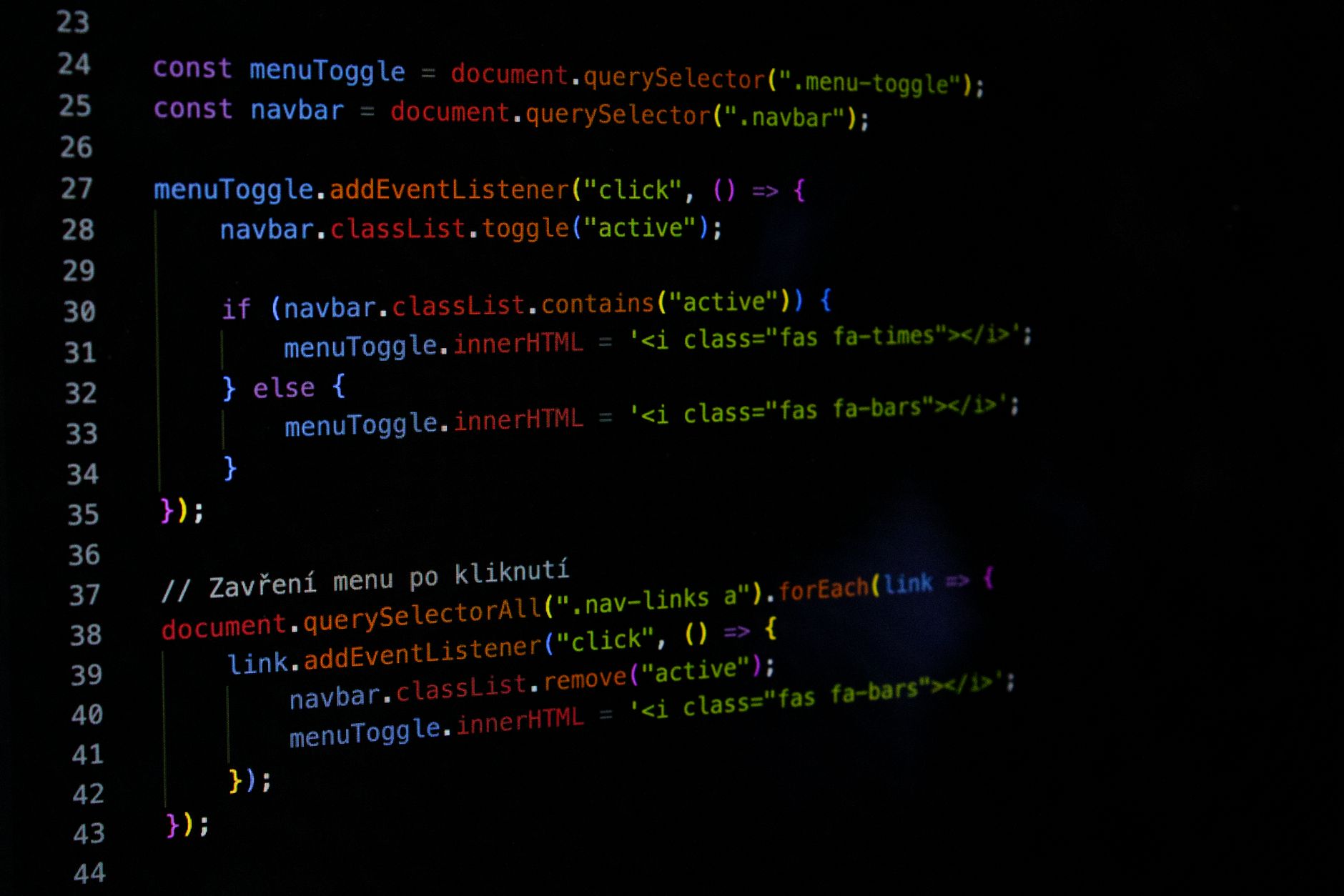
Previously in this course, we covered removing to-do items, which taught us how to handle user actions on dynamically created elements. In this lesson, we add the next logical interaction: marking a task as "done."
Instead of manually changing individual CSS styles, we’ll use the industry-standard approach of toggling a CSS class. This keeps our design logic in CSS and our behavior logic in JavaScript.
Understanding Class Toggling with ClassList
When a user clicks on a task, we want the text to look "done"—perhaps by striking through the text or changing its color. We achieve this by adding or removing a CSS class that contains these styles.
In Changing Styles via JS: Mastering CSS Manipulation and classList, you learned the basics of the classList API. Today, we focus on the .toggle() method, which is the most efficient way to switch a state on or off based on a user interaction.
The CSS Foundation
Before writing JavaScript, we define the visual state. Add this to your stylesheet:
CSS#9CDCFE">color:#4EC9B0">.task-text {
  #9CDCFE">cursor: pointer;
  #9CDCFE">transition: color 0.2s;
}

.task-text#9CDCFE">color:#4EC9B0">.completed {
  #9CDCFE">text-decoration: line-through;
  #9CDCFE">color: #888;
}
Implementing the Toggle Logic
When you render your to-do list, you'll attach an event listener to the element representing the task text. Inside that listener, we call classList.toggle('completed').
Here is how to implement this in your existing task rendering function:
JAVASCRIPTfunction createTaskElement(taskText) {
  const li = document.createElement(CE9178">'li');
  const span = document.createElement(CE9178">'span');

  span.textContent = taskText;
  span.classList.add(CE9178">'task-text');

  // The toggle logic
  span.addEventListener(CE9178">'click', function() {
    this.classList.toggle(CE9178">'completed');
  });

  li.appendChild(span);
  return li;
}
Why Toggle?
The .toggle() method is powerful because it removes the need for manual if/else checks. It checks if the class exists: if it's there, it removes it; if it's missing, it adds it. This aligns perfectly with a user clicking a checkbox or text to flip a state.
Hands-on Exercise
- Open your project files and locate the function where you create the list items.
- Ensure each task text is wrapped in a
<span>or<div>with a class liketask-text. - Add the
addEventListener('click', ...)code shown above. - Verify that clicking the text toggles the
line-throughstyle in your browser.
Common Pitfalls
- Targeting the wrong element: If you attach the click listener to the entire
<li>(which might include a delete button), clicking the delete button will also toggle the completion state. Always attach the listener specifically to the text element. - CSS Specificity: If your
completedclass isn't showing up, ensure your CSS rules are specific enough to override existing styles. - Event Bubbling: Remember that clicking an element also triggers events on its parents. If you find your toggle triggering unexpectedly, double-check your event propagation logic.
Frequently Asked Questions
What is the difference between add/remove and toggle?
add and remove are explicit instructions. toggle is a state-switcher. For a simple "check-off" task feature, toggle is cleaner and less error-prone.
Can I toggle multiple classes at once?
No, classList.toggle() accepts one class name at a time. If you need to toggle multiple states, call the method multiple times or use a single "active" class that triggers different styles via CSS nesting.
Does this persist after a page refresh? Not yet. We are currently handling the visual state in the browser's memory. We will cover how to persist this "completed" status in later lessons using LocalStorage.
Recap
We’ve successfully enabled visual feedback for our tasks. By using classList.toggle('completed'), we decouple our JavaScript from the CSS styling, keeping our code maintainable and clean.
Up next: We will introduce the concept of "State" to keep track of which tasks are finished even when we aren't just looking at the DOM.
Work with me

Next.js Full-Stack Web App Development
A fast, SEO-ready full-stack web app built with Next.js 16 — from idea to deployed product, by an engineer who ships to production.
Next.js Website & Landing Page Development
A blazing-fast, SEO-optimized website or landing page in Next.js — the kind that loads instantly and ranks. Design-to-code, done right.