Dynamic Weather Updates: Building Interactive Location Forms
Learn to build an interactive location input form that triggers live weather data fetches. Update your dashboard dynamically using events and modern JS.

Previously in this course, we mastered Displaying Weather Data: Dynamic DOM Injection and UI Updates and Rendering the To-Do List: Dynamic DOM Updates with JavaScript. Now that you can display hard-coded or static data, this lesson adds the "interactive" piece of the puzzle: allowing the user to request weather updates for any location they choose.
The Power of Dynamic Content
Up until now, our dashboard has been somewhat "pre-canned." We fetch data when the page loads, but true web applications respond to user input. By connecting a form to our existing fetch logic, we turn a static display into a dynamic experience.
To achieve this, we need three distinct parts:
- The Form: An HTML element that captures a string (the city name).
- The Event Listener: A mechanism to "listen" for the form submission.
- The Bridge: A function that takes the input value and feeds it into our API request.
Worked Example: Building the Location Form
First, let's add the HTML structure to your dashboard. Place this above your existing weather container:
HTMLstyle="color:#808080"><style="color:#4EC9B0">form id="weather-form">
  style="color:#808080"><style="color:#4EC9B0">input type="text" id="city-input" placeholder="Enter city name..." required>
  style="color:#808080"><style="color:#4EC9B0">button type="submit">Get Weatherstyle="color:#808080"></style="color:#4EC9B0">button>
style="color:#808080"></style="color:#4EC9B0">form>

style="color:#808080"><style="color:#4EC9B0">div id="weather-display">style="color:#808080"></style="color:#4EC9B0">div>
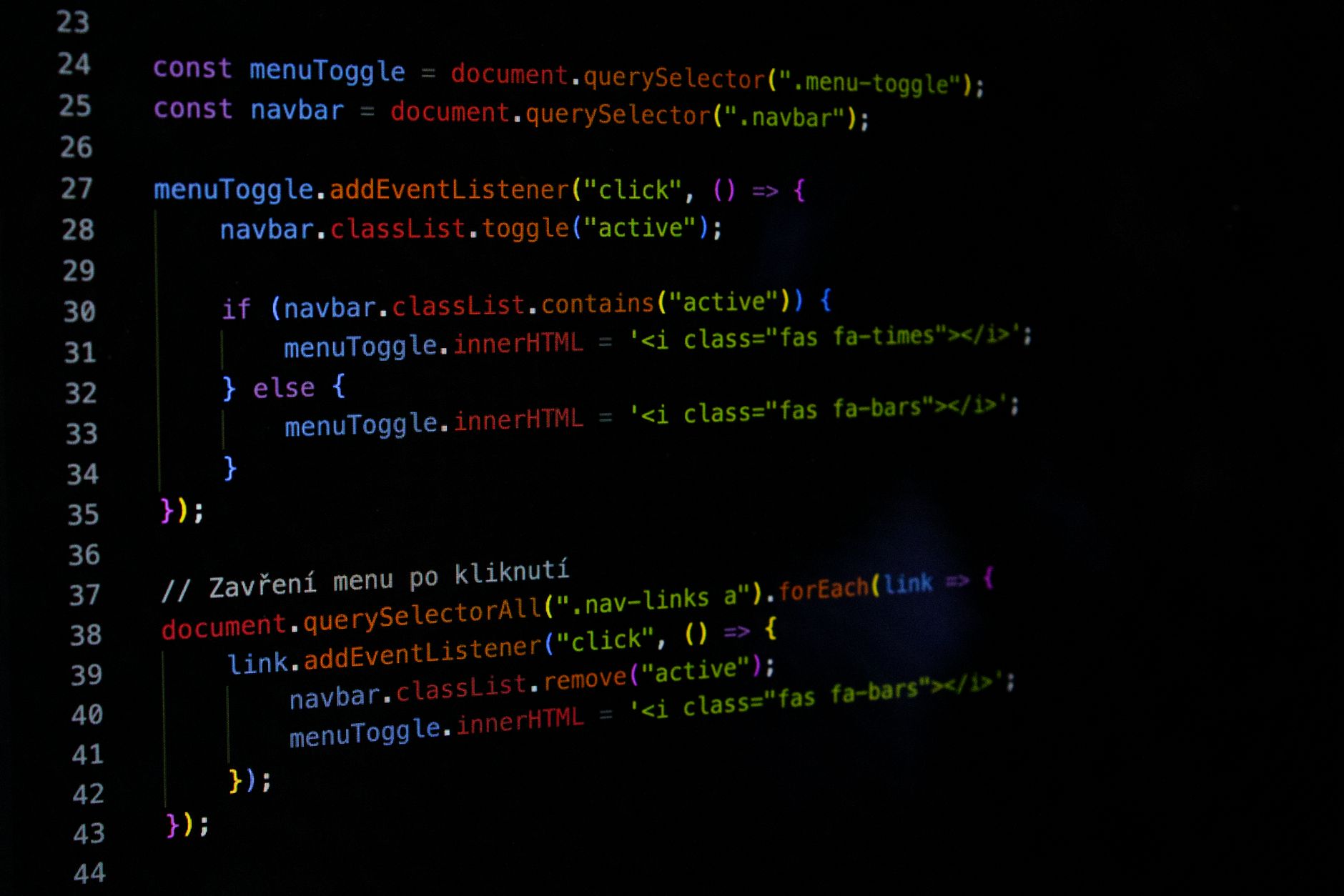
Next, in your JavaScript, we need to wire these elements together. We’ll use addEventListener to capture the submit event, prevent the browser's default page refresh, and update our UI.
JAVASCRIPTconst form = document.querySelector(CE9178">'#weather-form');
const input = document.querySelector(CE9178">'#city-input');
const display = document.querySelector(CE9178">'#weather-display');

form.addEventListener(CE9178">'submit', async (event) => {
  // Stop the page from reloading
  event.preventDefault();

  const city = input.value;

  // Update the UI to show we're working
  display.innerText = CE9178">`Loading weather for ${city}...`;

  // Trigger the weather fetch
  try {
    const weatherData = await fetchWeather(city); // Your existing function
    renderWeather(weatherData); // Your existing function
  } catch (error) {
    display.innerText = CE9178">'Could not find that location. Try again?';
  }
});
Hands-on Exercise
- Add the
<form>provided above to your existing dashboard HTML. - In your main JavaScript file, select the form and input elements.
- Attach a
submitlistener. - Inside the listener, clear the previous weather results from the
displaycontainer before calling yourfetchWeatherfunction. - Challenge: Add an
input.value = ''line at the end of your submit handler to clear the text box after the user searches.
Common Pitfalls
- Forgetting
event.preventDefault(): If you miss this, the browser will reload the page immediately upon form submission, clearing your JavaScript state and making it impossible to see the updated weather. - Case Sensitivity: Some APIs are sensitive to capital letters. Use
.trim().toLowerCase()on your input string if you find your requests are failing due to formatting. - Asynchronous Race Conditions: If a user clicks "Submit" repeatedly, you might trigger multiple fetches. In a production app, you might disable the button while the fetch is in progress to prevent this.
FAQ
Q: Can I trigger the weather update without a button?
A: Yes! You can listen for the blur event on the input field or even use the keypress event to detect when the user hits "Enter."
Q: Why does my page flash when I click submit?
A: That is the default behavior of an HTML form. Ensure you are calling event.preventDefault() as the very first line inside your event handler.
Q: How do I handle empty inputs?
A: Add a check inside your event listener: if (!city) return; prevents the code from executing if the user submits an empty string.
Recap
We’ve successfully connected user input to our backend logic. By capturing the form submission event, preventing the default browser behavior, and passing the input string into our fetch function, we have created a truly interactive weather dashboard.
Up next: Polishing the User Experience, where we’ll add loading spinners and better status notifications.
Work with me

Next.js Full-Stack Web App Development
A fast, SEO-ready full-stack web app built with Next.js 16 — from idea to deployed product, by an engineer who ships to production.

Laravel SaaS MVP & Multi-Tenant App Development
Launch your SaaS MVP on Laravel — multi-tenant, subscription-ready, and built by the engineer behind a platform serving 10,000+ paying users.